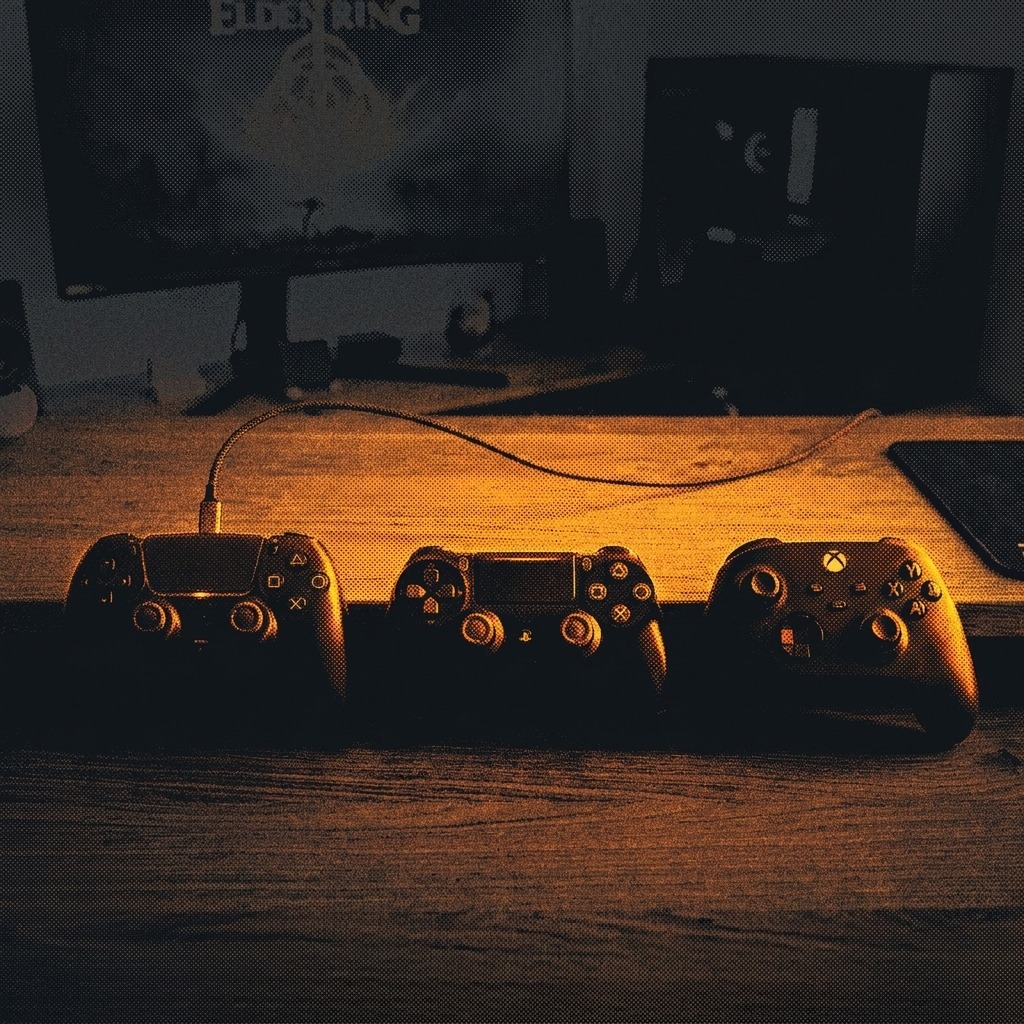
Quick answer: All three controllers connect to a Windows PC three ways — USB cable, Bluetooth, or a proprietary wireless adapter — and Windows 10/11 recognizes all of them natively with no drivers to install. The catch is game compatibility: Xbox controllers speak Microsoft’s XInput natively, which almost every PC game supports out of the box, while PS5 and PS4 controllers often need Steam or a translation tool like DS4Windows to work outside of Steam titles. Wired USB is the simplest, lowest-latency option for all three and is the best starting point if you just want something that works.
What You’ll Need
- PS5 DualSense: a USB-C to USB-A (or USB-C to USB-C) cable for wired play, or built-in/USB Bluetooth for wireless
- PS4 DualShock 4: a micro-USB cable for wired play, or built-in/USB Bluetooth (a Bluetooth 4.0+ adapter works; the official Sony DualShock 4 USB Wireless Adaptor is a plug-and-play alternative to native Bluetooth)
- Xbox controller: a USB-C or micro-USB cable depending on model, or built-in/USB Bluetooth on supported models, or Microsoft’s Xbox Wireless Adapter for the lowest-latency wireless connection
- Confirm your controller’s firmware is up to date before troubleshooting anything — outdated firmware is a common cause of pairing failures on all three platforms
How to Connect a PS5 DualSense Controller to PC
Wired (Recommended for the Simplest Setup)
Plug a USB-C cable into the DualSense and the other end into your PC. Windows detects it automatically as a standard gamepad — no drivers or software required for basic functionality. Wired is also required in most games for the DualSense’s full haptic feedback and adaptive trigger effects, since Bluetooth support for those features depends on the game and your Bluetooth stack.
Bluetooth Wireless Setup
- Make sure the controller isn’t already connected by USB, and that its light bar is off (hold the PS button until it turns off if needed).
- Put it in pairing mode: hold the PS button and the Create button (top-left, above the D-pad) together for about three seconds until the light bar flashes rapidly.
- On your PC, go to Settings → Bluetooth & devices → Add device → Bluetooth.
- Select “Wireless Controller” from the list to complete pairing.
Connecting Through Steam
Open Steam, go to Steam → Settings → Controller, and enable PlayStation Controller Support. Connect the DualSense by USB or Bluetooth and Steam will detect it automatically, giving you access to Steam Input’s remapping and haptics support in Steam-compatible titles.
For advanced features like adaptive triggers in non-Steam games, third-party tools such as DualSenseX add support that Windows doesn’t provide natively.
How to Connect a PS4 DualShock 4 Controller to PC
Wired Setup
Connect the controller to your PC with a micro-USB cable. Windows recognizes it immediately with no extra setup.
Bluetooth Setup
- With the controller off (light bar dark), hold Share and the PS button together until the light bar starts flashing rapidly.
- On your PC, open Settings → Bluetooth & other devices → Add Bluetooth or other device → Bluetooth.
- Select the controller — it will typically appear as “Wireless Controller” — to complete pairing.
Official Wireless Adapter
The Sony DualShock 4 USB Wireless Adaptor plugs into a USB port and pairs directly with the controller, skipping your PC’s own Bluetooth stack entirely. It’s a reliable fallback if you have persistent Bluetooth pairing issues.
The Important Catch (XInput vs DirectInput)
The DualShock 4 doesn’t send native XInput signals — the interface most PC games are built to expect from an Xbox-style controller. Steam handles this translation automatically for Steam titles through Steam Input. For games outside Steam, you’ll generally need a translation tool like DS4Windows, which creates a virtual Xbox 360 controller so non-Steam games recognize your DualShock 4 as if it were an Xbox pad.
How to Connect an Xbox Controller to PC
Wired Setup
Xbox Series X|S and Elite Series 2 controllers use USB-C; older Xbox One controllers use micro-USB. Plug in, and Windows 10/11 installs the necessary driver automatically — a one-time process on first connection.
Bluetooth Setup
Not every Xbox controller model has Bluetooth. Here’s how to check and connect:
| Controller | Bluetooth support | How to tell |
|---|---|---|
| Original Xbox One controller (model 1537, 2013–2015) | No | Separate glossy plastic strip around the Xbox button |
| Xbox One S controller (2016+) | Yes | Seamless plastic, no separate strip, around the Xbox button |
| Xbox Series X|S controller | Yes | All units support Bluetooth |
| Xbox Elite Series 2 | Yes | All units support Bluetooth |
| Xbox 360 wireless controller | No (uses its own dongle) | Requires the separate Xbox 360 Wireless Gaming Receiver — incompatible with the Xbox One/Series Wireless Adapter |
To pair a Bluetooth-capable Xbox controller: go to Settings → Bluetooth & devices → Add device → Bluetooth on your PC, then hold the small Pair button on top of the controller (between the bumpers) until the Xbox logo flashes rapidly. Select it from the device list to finish.
Xbox Wireless Adapter Setup
This is Microsoft’s official USB dongle, and it’s a genuinely different connection method from Bluetooth — it uses a proprietary Wi-Fi Direct–based protocol rather than the standard Bluetooth stack. Plug the adapter into a USB port, hold the controller’s sync button (the button with three short dashes, next to the bumpers) until the Xbox logo flashes, and pairing completes automatically. It supports up to eight controllers simultaneously, provides a more stable connection than Bluetooth, and — unlike Bluetooth — supports headset audio passthrough through the controller’s 3.5mm jack.
Wired vs. Bluetooth vs. Wireless Adapter: Which Should You Use?
| Method | Latency | Reliability | Extra hardware cost | Best for |
|---|---|---|---|---|
| USB cable | Lowest, most consistent | Highest | None (cable only) | Competitive play, first-time setup, ruling out wireless issues |
| Official wireless adapter (Xbox Wireless Adapter, DS4 USB Adaptor) | Low, close to wired | High | ~$20–25 | Wireless play without giving up much consistency |
| Bluetooth | Higher, more variable | Moderate — subject to interference | None (if built into your PC) | Casual or couch gaming where convenience matters more than milliseconds |
The gap between these methods is mostly about consistency rather than raw speed for casual play — for the technical breakdown of why, including real Hz benchmarks for wired, Bluetooth, and 2.4GHz connections, see our full guide to controller polling rate and input lag.
Making Your Controller Work in Every Game
Because Xbox controllers natively speak XInput, they tend to “just work” across nearly every PC game without extra software. PlayStation controllers are the ones that usually need a translation layer for games outside Steam:
- Steam Input — built into Steam, works automatically with DualSense and DualShock 4 in Steam-library games, no extra installation
- DS4Windows — a free, actively maintained open-source tool that makes Windows see your PS4 or PS5 controller as a virtual Xbox 360 controller, giving it universal XInput compatibility in games launched outside Steam
- DualSenseX — built specifically for the DualSense, aimed at exposing adaptive trigger and haptic feedback support to more games on PC
- reWASD — a paid tool aimed at deep remapping (touchpad zones, macros, paddle mapping) rather than basic connectivity, useful if you want more control than the free options offer
For most people, the decision is simple: if you only play Steam games, you don’t need any of these. If you regularly play outside Steam with a PlayStation controller, DS4Windows is the standard free fix.
Troubleshooting Common Connection Problems
- Controller charges but won’t connect over USB: you may be using a charge-only cable. Swap in a data-capable USB cable.
- Bluetooth pairing fails repeatedly: confirm the controller isn’t already connected via USB or paired to another device (a phone, console, etc.), reset the controller (small pinhole reset button on PlayStation controllers), and make sure Windows Bluetooth drivers are current.
- Controller connects but games don’t detect it: this is almost always the XInput/DirectInput issue described above for PlayStation controllers — install DS4Windows or use Steam Input.
- Random Bluetooth disconnects: usually caused by 2.4GHz interference from Wi-Fi routers or other Bluetooth devices nearby, or a low controller battery. Moving closer to the PC or switching to a wired/adapter connection resolves most cases.
- Firmware-related quirks: update PlayStation controllers via the PlayStation Accessories app or by connecting to a PS5/PS4 console, and update Xbox controllers via the Xbox Accessories app.
Verify Your Connection
Once connected, confirm every stick, button, and trigger is registering correctly before jumping into a game — a bad cable or an incomplete Bluetooth pairing can leave inputs partially working. You can also use this moment to check your sticks for early stick drift, since resting-position problems are much easier to catch before a play session than during one.
Test Your Controller Now
Check stick drift, circularity error, latency, and dual vibration motors in your browser.
Frequently Asked Questions
Do I need to install drivers to use a PS5, PS4, or Xbox controller on PC?
No, for basic functionality. Windows 10 and 11 natively recognize all three as standard gamepads over USB or Bluetooth. You only need extra software (like DS4Windows) if a specific game won’t detect a PlayStation controller, or if you want advanced features like adaptive triggers.
Why does my Xbox controller work in every game but my PS5 controller doesn’t?
Xbox controllers send XInput signals natively, which is the format most PC games are coded to expect. DualSense and DualShock 4 controllers don’t, so games outside Steam (which translates this automatically) often need a tool like DS4Windows to be recognized properly.
Is wired or wireless better for connecting a controller to PC?
Wired USB is the simplest and lowest-latency option and is the best starting point for troubleshooting. Wireless is more convenient for couch or casual setups — an official adapter (Xbox Wireless Adapter or the DualShock 4 USB Wireless Adaptor) is more consistent than standard Bluetooth if you want to stay cable-free.
Can I connect more than one controller at once?
Yes. All three platforms support multiple simultaneous controllers on PC — up to eight with the Xbox Wireless Adapter, and multiple controllers over Bluetooth or Steam Input, limited mainly by how many Bluetooth devices your PC can handle at once.
Related Guides
- What Is Stick Drift, and How Do You Actually Fix It?
- Hall Effect vs. TMR vs. ALPS Joysticks: What’s Actually Different?
- Understanding Controller Polling Rate and Input Lag: Complete Benchmark Guide
Sources
- The Controller People — How to Use a PS5 Controller on PC: The Complete Guide for 2026
- Technobezz — How to Connect a PS5 Controller to a PC in 2026
- PC Gamer — How to Use the PlayStation 5 DualSense Controller on PC
- PlayStation Official Support — How to Use DUALSHOCK 4 Wireless Controllers With PC, Mac, Android, and iOS
- PC Gamer — How to Use a PS4 Controller on PC: Wired and Bluetooth
- Driver Easy — How to Use PS4 Controller on PC
- Turtle Beach — How to Connect an Xbox Controller to PC Wirelessly
- Gaming ProMax — How to Connect Xbox Controller to PC
- Tom’s Guide — How to Connect an Xbox Controller to a PC
- qisac.com — Connect Xbox Controller to PC With a Bluetooth Dongle
- Tech Insider Ireland — DS4Windows vs reWASD vs Steam Input 2026